

Quickstart
The Jules REST API lets you programmatically access Jules’s capabilities to automate and enhance your software development lifecycle. You can use the API to create custom workflows, automate tasks like bug fixing and code reviews, and embed Jules’s intelligence directly into the tools you use every day, such as Slack, Linear, and GitHub.
The Jules REST API is in an alpha release, which means it is experimental. Be aware that we may change specifications, API keys, and definitions as we work toward stabilization. In the future, we plan to maintain at least one stable and one experimental version.
Authentication
Section titled “Authentication”To get started with the Jules REST API, you’ll need an API key.
Generate Your API Key
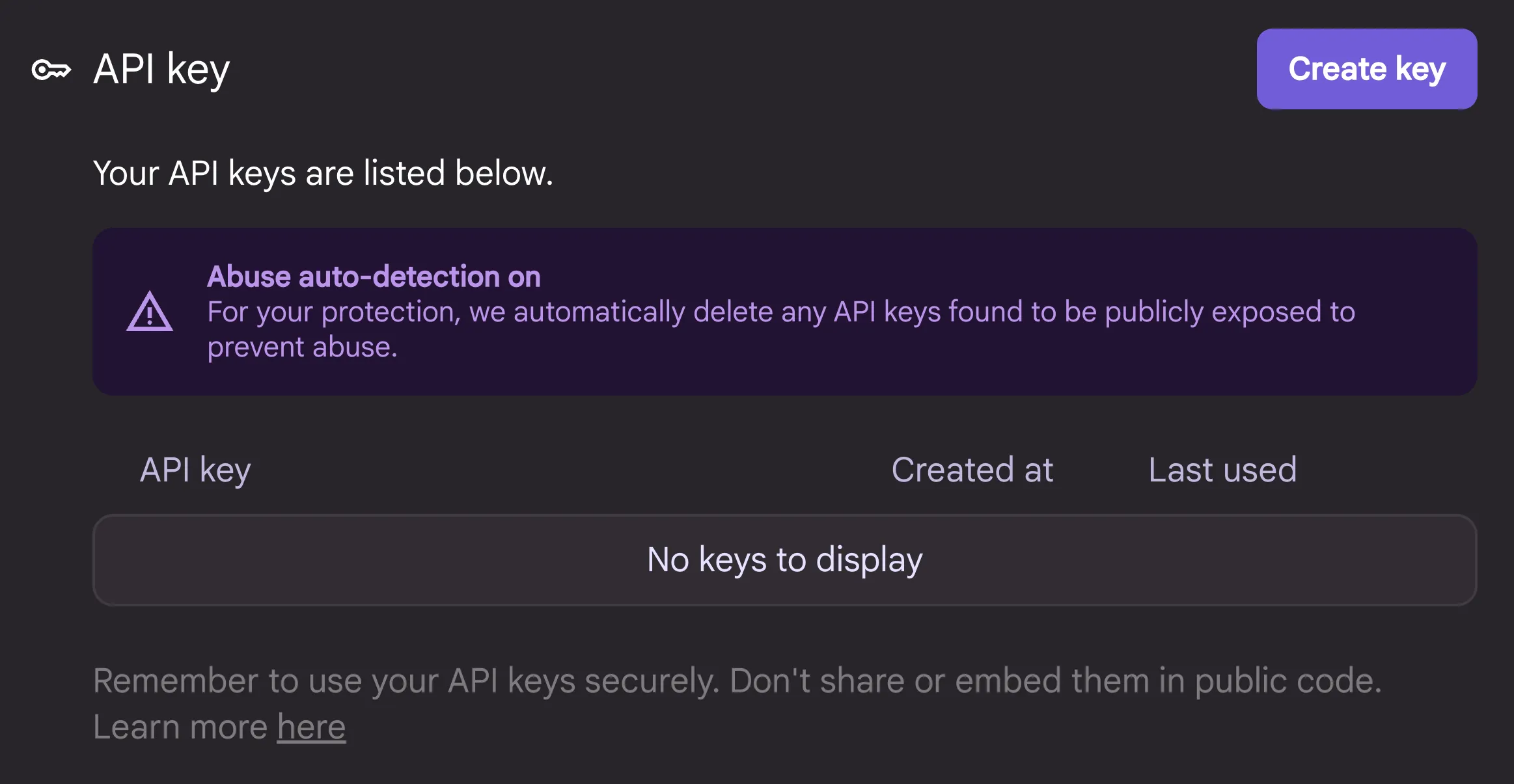
Section titled “Generate Your API Key”In the Jules web app, go to the Settings page to create a new API key. You can have at most 3 API keys at a time.
Use Your API Key
Section titled “Use Your API Key”To authenticate your requests, pass the API key in the X-Goog-Api-Key header of your API calls.
Keep your API keys secure. Don’t share them or embed them in public code. For your protection, any API keys found to be publicly exposed will be automatically disabled to prevent abuse.
API concepts
Section titled “API concepts”The Jules REST API is built around a few core resources. Understanding these will help you use the API effectively.
- Source — An input source for the agent (e.g., a GitHub repository). Before using a source using the API, you must first install the Jules GitHub app through the Jules web app.
- Session — A continuous unit of work within a specific context, similar to a chat session. A session is initiated with a prompt and a source.
- Activity — A single unit of work within a Session. A Session contains multiple activities from both the user and the agent, such as generating a plan, sending a message, or updating progress.
Your first API call
Section titled “Your first API call”We’ll walk through creating your first session with the Jules REST API using curl.
-
List your available sources
Section titled “List your available sources”First, you need to find the name of the source you want to work with (e.g., your GitHub repo). This command will return a list of all sources you have connected to Jules.
curl -H "x-goog-api-key: $JULES_API_KEY" \
  https://jules.googleapis.com/v1alpha/sources
The response will look something like this:
{"sources": [{"name": "sources/github/bobalover/boba","id": "github/bobalover/boba","githubRepo": {"owner": "bobalover","repo": "boba"}}],"nextPageToken": "github/bobalover/boba-web"} -
Create a new session
Section titled “Create a new session”Now, create a new session. You’ll need the source name from the previous step. This request tells Jules to create a boba app in the specified repository.
curl 'https://jules.googleapis.com/v1alpha/sessions' \
  -X POST \
  -H "Content-Type: application/json" \
  -H "x-goog-api-key: $JULES_API_KEY" \
  -d '{
    "prompt": "Create a boba app!",
    "sourceContext": {
      "source": "sources/github/bobalover/boba",
      "githubRepoContext": {
        "startingBranch": "main"
      }
    },
    "automationMode": "AUTO_CREATE_PR",
    "title": "Boba App"
  }'
The
automationModefield is optional. By default, no PR will be automatically created.The immediate response will look something like this:
{"name": "sessions/31415926535897932384","id": "31415926535897932384","title": "Boba App","sourceContext": {"source": "sources/github/bobalover/boba","githubRepoContext": {"startingBranch": "main"}},"prompt": "Create a boba app!"}You can poll the latest session information using
GetSessionorListSessions. For example, if a PR was automatically created, you can see the PR in the session output:{"name": "sessions/31415926535897932384","id": "31415926535897932384","title": "Boba App","sourceContext": {"source": "sources/github/bobalover/boba","githubRepoContext": {"startingBranch": "main"}},"prompt": "Create a boba app!","outputs": [{"pullRequest": {"url": "https://github.com/bobalover/boba/pull/35","title": "Create a boba app","description": "This change adds the initial implementation of a boba app."}}]}By default, sessions created through the API will have their plans automatically approved. If you want to create a session that requires explicit plan approval, set the
requirePlanApprovalfield totrue. -
List sessions
Section titled “List sessions”You can list your sessions as follows:
curl 'https://jules.googleapis.com/v1alpha/sessions?pageSize=5' \ -H "x-goog-api-key: $JULES_API_KEY" -
Approve a plan
Section titled “Approve a plan”If your session requires explicit plan approval, you can approve the latest plan as follows:
curl 'https://jules.googleapis.com/v1alpha/sessions/SESSION_ID:approvePlan' \ -X POST \ -H "Content-Type: application/json" \ -H "x-goog-api-key: $JULES_API_KEY" -
Interact with the agent
Section titled “Interact with the agent”To list activities in a session:
curl 'https://jules.googleapis.com/v1alpha/sessions/SESSION_ID/activities?pageSize=30' \
  -H "x-goog-api-key: $JULES_API_KEY"
To send a message to the agent:
curl 'https://jules.googleapis.com/v1alpha/sessions/SESSION_ID:sendMessage' \
  -X POST \
  -H "Content-Type: application/json" \
  -H "x-goog-api-key: $JULES_API_KEY" \
  -d '{
    "prompt": "Can you make the app corgi themed?"
  }'
The response will be empty because the agent will send its response in the next activity. To see the agent’s response, list the activities again.