

Scheduled Tasks
Jules allows you to set up recurring tasks ensuring continuous execution of routine codebase maintenance, monitoring, or updates without the need for manual re-prompting.
Creating a Scheduled Task
Section titled “Creating a Scheduled Task”You can convert any standard task into a recurring one directly from the task input field.
- Navigate to the main Task Input field.
- Click the Planning dropdown located at the bottom right of the input area.
- Select Scheduled Task from the menu.
- Configure the Frequency and Cadence (e.g., Daily, Weekly) using the settings that appear at the top of the input field.
- Write your task prompt and click Submit.
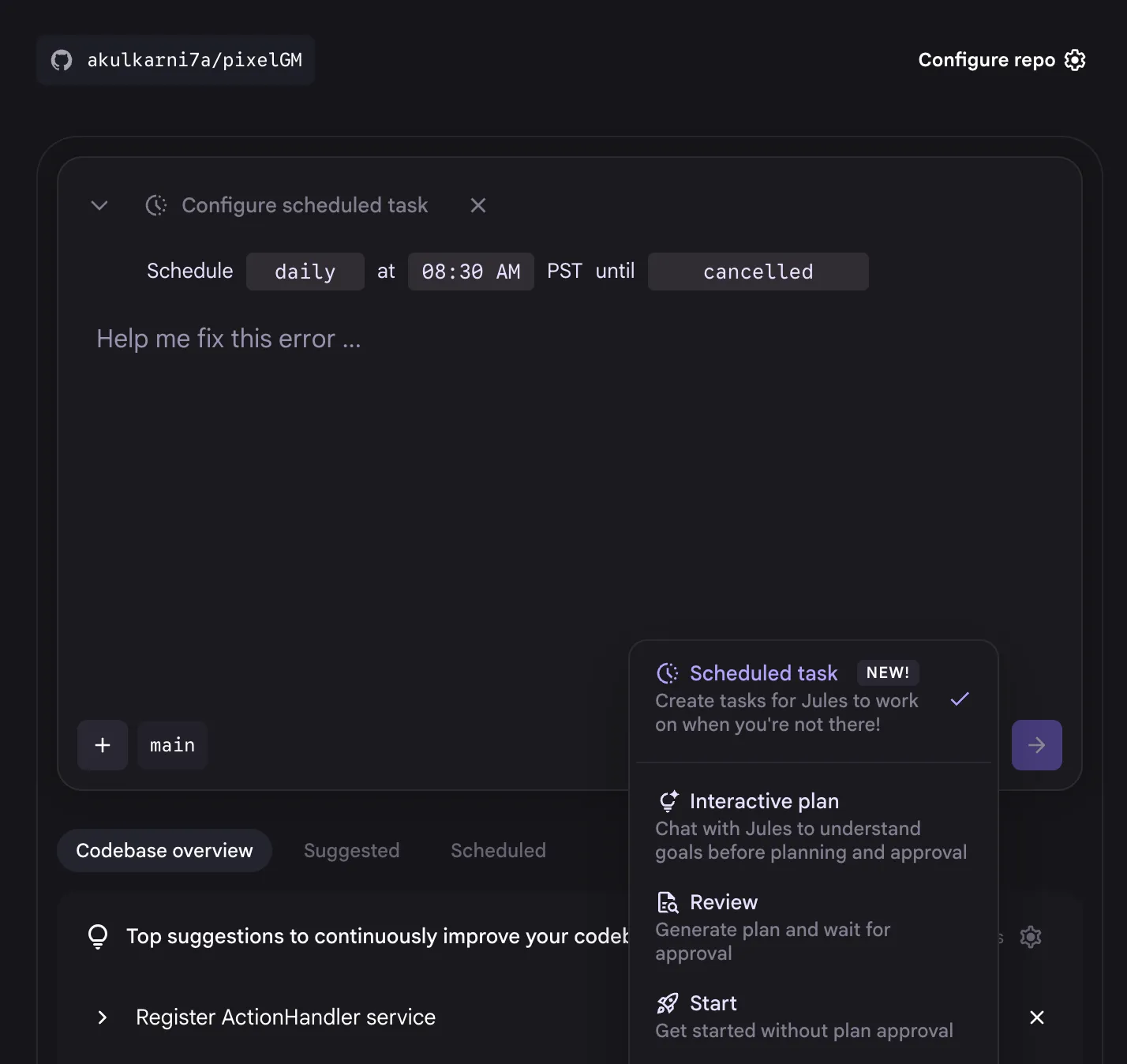
The task is now active and will execute automatically at the specified times.
Managing Scheduled Tasks
Section titled “Managing Scheduled Tasks”Once a task is created, you can view and manage it within your dashboard.
To find your tasks, look for the Scheduled tab located immediately under the text field in the dashboard. From this view, you can:
- Monitor Status: See when the task last ran and when it is scheduled to run next.
- Delete: Remove the scheduled task permanently.
Editing an existing scheduled task is not currently supported. You will need to delete the task and create a new one.
Common Use Cases
Section titled “Common Use Cases”Scheduled tasks are best used for maintenance jobs that require consistency but minimal human oversight. We’ve added three templated scheduled tasks that our friends at Stitch (Google’s AI Design tool) uses. They include:
| Use Case | Description |
|---|---|
| Performance | A performance-obsessed agent who makes the codebase faster, one optimization at a time. |
| Design | UX-focused agent who adds small touches of delight and accessibility to the user interface. |
| Security | A security-focused agent who protects the codebase from vulnerabilities and security risks. |